Installation Guide
Follow these simple steps to install PinZip and start downloading Pinterest images in bulk
Browser Compatibility
PinZip works with Chrome, Edge, Brave, Opera, and all Chromium-based browsers. The installation process is similar across all these browsers.
Download the Extension
Click the download button below to get the latest version of PinZip extension as a ZIP file.
Extract the ZIP File
Extract the downloaded ZIP file to a folder on your computer. Remember this location as you'll need it in the next steps.
Open Chrome Extensions & Enable Developer Mode
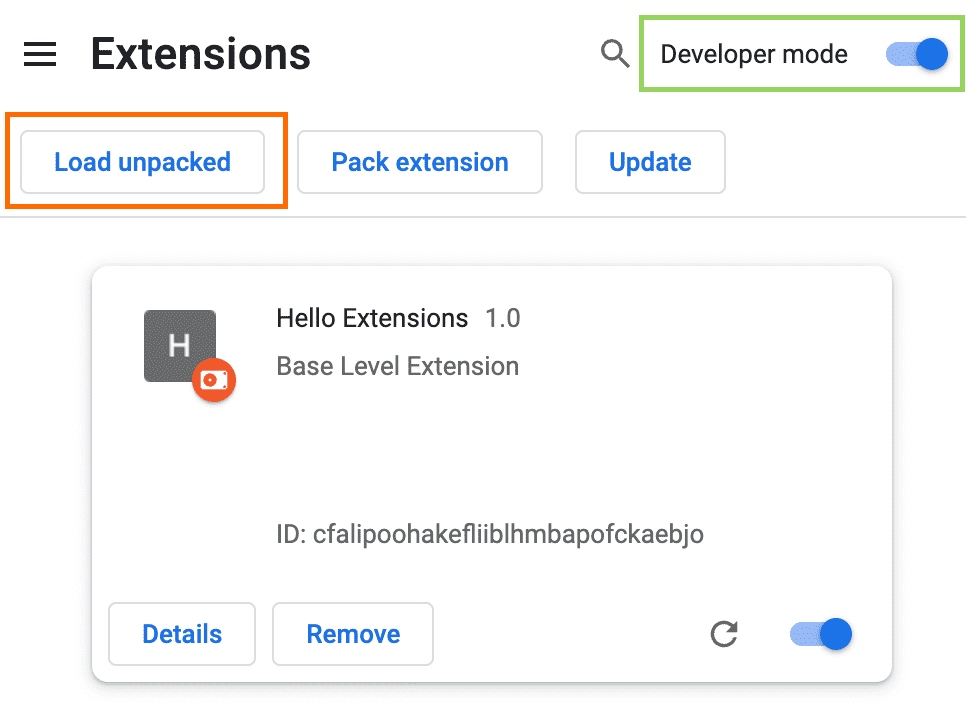
Navigate to chrome://extensions/ in your Chrome browser. Toggle the "Developer mode" switch in the top right corner of the extensions page.

Load Unpacked Extension
Click "Load unpacked" button and select the extracted PinZip folder from step 2.
Pin the Extension
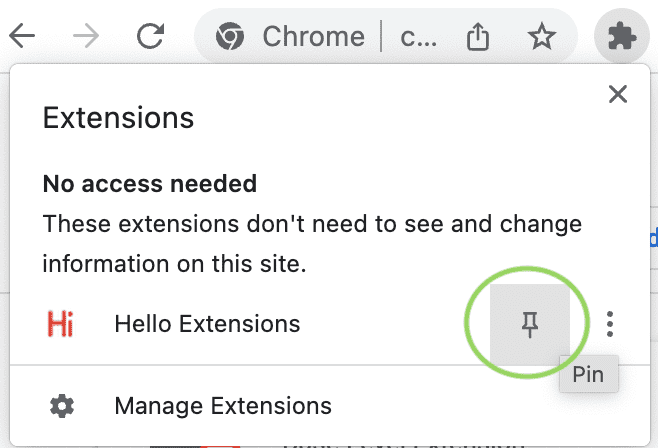
Click the puzzle icon in your browser toolbar and pin PinZip for easy access.
Start Using PinZip
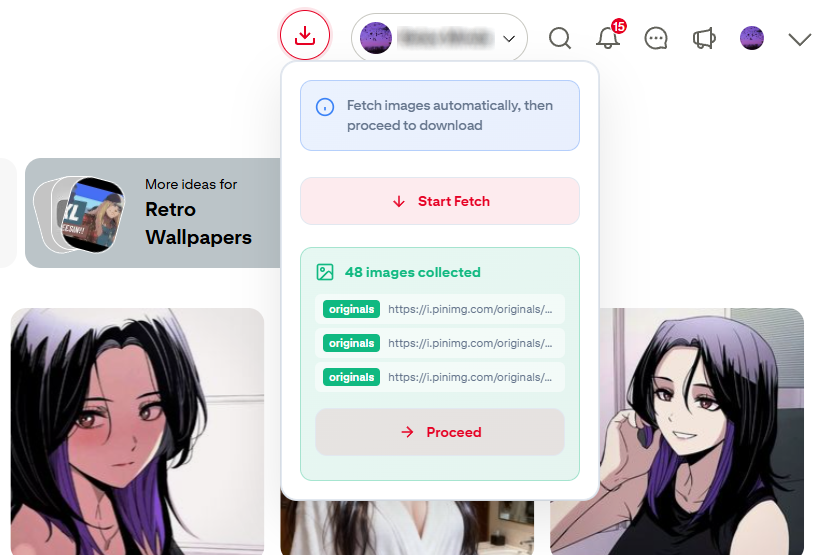
The extension is now installed and pinned! Visit any Pinterest page and click the PinZip icon to start downloading.
Need Help?
If you encounter any issues during installation, check out our detailed documentation or reach out to our support team.